
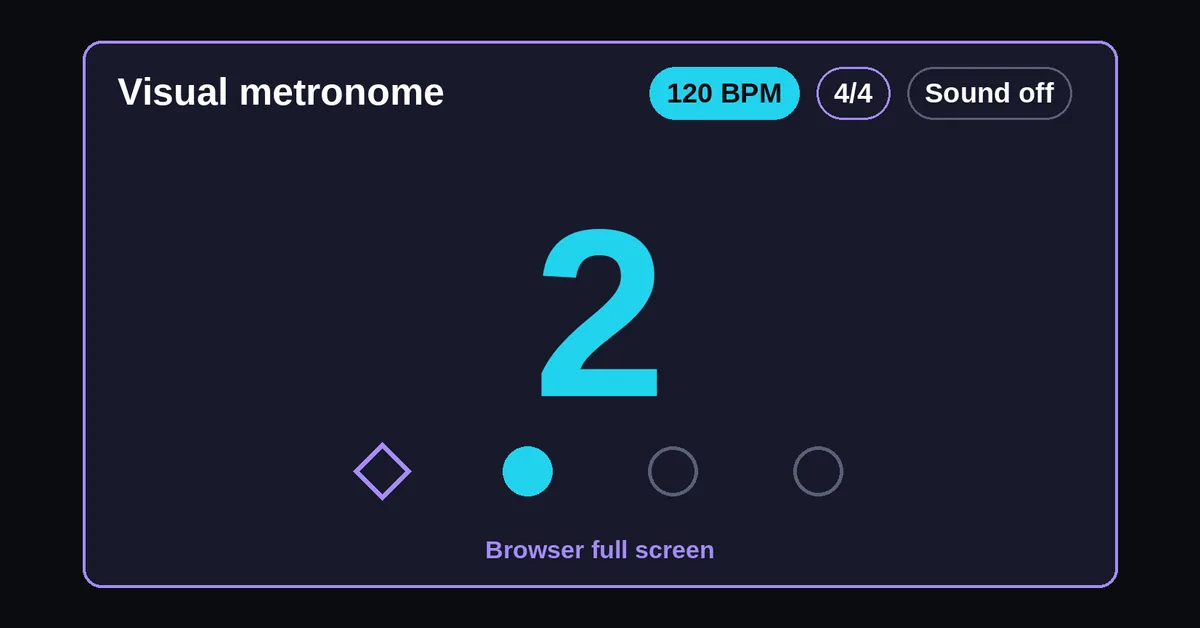
How do you use a silent visual beat?
Set the tempo and meter, choose a display and select Start. The beat number identifies your place in the bar, while a shape marks its beginning. Keep sound off for silent practice, or enable the click. Stop before changing the meter so the next run begins clearly on the first position.
- Enter a tempo from 20 to 360 beats per minute using the number field or slider.
- Select the time signature and check the displayed beat unit.
- Start with Ball and aim a single note at baseline contact.
- Read the beat number and bar counter to track your place.
- Select Stop before adjusting the tempo or meter, then restart on position 1.
Tempo or meter changes stop playback and reset the position. Use tap tempo to estimate an unknown tempo before entering it here; this page has no tap input.
For the existing sound choices, subdivisions and speed trainer, open the online metronome. Use this silent metronome when you want a visible reference in a quiet room, classroom or rehearsal.

Which display should you choose?
Choose Ball or Pendulum to watch motion approach a cue, and Counter when you want numbers without travel motion. The beat number remains available in every mode. In Pendulum, each endpoint arrival marks the next position: left then right are consecutive cues, rather than one complete swing per beat.
| Display | What marks the pulse | Available tempo |
|---|---|---|
| Ball | Contact with the baseline | 20 to 360 BPM |
| Pendulum | Arrival at either endpoint | 20 to 360 BPM |
| Counter | Change to the next grid number | 20 to 360 BPM |
| Small flash indicator | Brief indicator change beside the counter | 20 to 180 BPM in x/4; 20 to 90 quarter note BPM in x/8 |
If you count only the left endpoint at 60 BPM in 4/4, you follow every other position, with 2 seconds between those arrivals. Count both endpoints to follow the 1 second quarter note spacing. With Ball, aim at contact rather than the top of the bounce.
Flash adds only a small indicator and starts off. Above 180 BPM in x/4, or 90 quarter note BPM in x/8, it switches to Counter and explains why. The W3C flash criterion restricts flashing above three times in a second unless it is below defined thresholds.
At 100 BPM in 6/8, the eighth position rate is about 3.33 cues per second, so Flash falls back to Counter. Full screen never flashes the whole screen. Select Counter to avoid intentional flashes and ball or pendulum motion; a reduced motion preference selects Counter initially.
How do BPM and meter control the display?
BPM sets the quarter note rate, while the meter sets the number of displayed grid positions in a bar. In x/4 meters each position is a quarter note. In x/8 meters each position is an eighth note, so the display advances twice per entered quarter note beat. The first position has a distinct shape.
BPM counts quarter notes in this table. In 6/8 the six eighth positions form two dotted quarter groups per bar, so a mark of dotted quarter = 80 goes in as 120. Puget Sound's meter lesson identifies 6/8 as compound duple meter, with two dotted note beats.
| Setting | Display positions per bar | Interval between cues | Bar duration |
|---|---|---|---|
| 120 BPM, 4/4 | 4 quarter positions | 500 ms | 2 seconds |
| 120 BPM, 3/4 | 3 quarter positions | 500 ms | 1.5 seconds |
| 90 BPM, 6/8 | 6 eighth positions | About 333.33 ms | 2 seconds |
At 90 BPM in 6/8, count ONE two three FOUR five six. Positions 1 and 4 begin the two main groups, 1 second apart. The tool distinguishes position 1 only; give position 4 your own musical emphasis if the passage calls for it.
Meter choices are 2/4, 3/4, 4/4, 5/4, 6/8, 7/8 and 12/8. Editable accent groups are unavailable. For 7/8, decide your grouping from the music before starting; the display supplies seven eighth positions without assigning that grouping. See time signatures and BPM for beat units.
What can you practice at 60 BPM without a click?
Try a 16 bar exercise at 60 BPM in 4/4, using Ball with sound off. First match single notes to baseline contact, then hold notes across several cues and return on the next downbeat. Use the bar counter to change tasks without touching the controls or changing the tempo.
- Bars 1 to 4: play one piano note, muted guitar stroke or drum practice pad stroke on every contact. Watch a complete bar before joining.
- Bars 5 to 8: play on positions 1 and 3. Let positions 2 and 4 pass without an attack.
- Bars 9 to 12: sound one note on position 1, hold through the bar and release at the following position 1. Repeat the exercise on each new bar.
- Bars 13 to 16: play a short phrase with a rest on beat 4, then reenter on the next downbeat.
At this setting, each quarter note lasts 1,000 ms and each bar lasts 4 seconds. The 16 exercise bars take 64 seconds, excluding the bar watched before joining. The numbers make a missed cue easy to locate: was the attack late, or did you lose your place during a rest?
If you keep reacting after contact, simplify to one repeated note and watch the approach to the baseline. If changing chords interrupts your count, repeat only the chord change through bars 5 to 8 before restoring the phrase.
There is no automatic exercise program here; advance tasks yourself. For scored tapping, use the rhythm trainer separately. A visible pulse supplies a reference without measuring your instrument's timing.
How do you set up a shared screen for rehearsal?
Place the device where every player can read the beat number from their playing position, then test a count before starting the music. Choose the light or dark high contrast palette for the room. Use the full screen control to enlarge the cue, and inspect the screen awake status during playback.
Full screen requests browser full screen after you press its button. The MDN fullscreen documentation explains that this requires user activation and can fail. If unsupported or refused, the tool enlarges within the page and labels that fallback Enlarged page view.
For a classroom entrance, rehearse one visible bar without playing, then enter together on the next position 1. Agree on that entrance beforehand; the bar counter identifies the bar but does not provide an automatic count in. Check the screen from behind the instrument, since a music stand may block the cue.
For a silent recording take, confirm Sound off before recording and keep the browser visible. If you need an audio file to place in a recording session, use the click track generator instead of relying on the screen as a recorded timing reference.
Keep screen awake requests that behavior from the browser and shows active, unsupported or released status. It cannot override every device or battery setting. The Screen Wake Lock specification permits acquisition only for visible documents and allows release; check the status again after an interruption.
How closely can the display follow the audio?
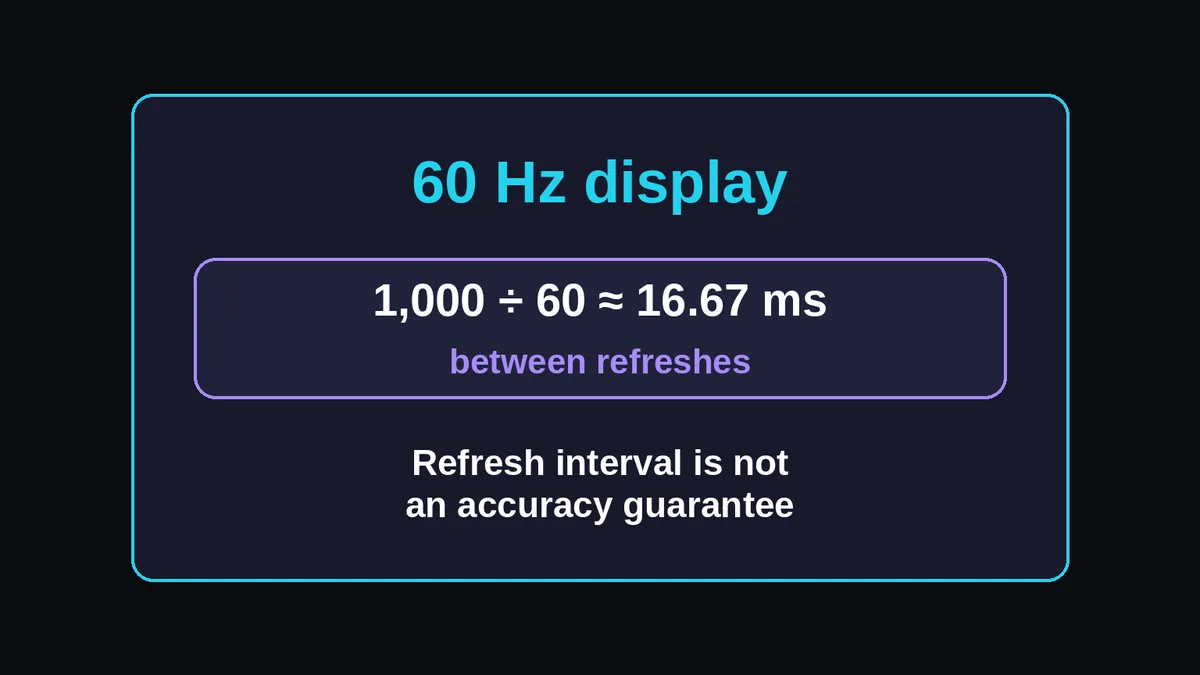
The display and optional click follow one timeline, but the screen and audio output update through different device systems. A screen refreshing at 60 Hz has about 16.67 milliseconds between refreshes. That interval is not a guarantee of visual accuracy: rendering delays, audio output latency and device behavior can add more offset.
MDN's animation documentation explains that updates normally follow display refresh and are commonly paused in hidden tabs. This tool stops when the page becomes hidden; restart when you return. It does not replay missed visual beats.
To compare references, set 60 BPM in 4/4, enable the optional click at a comfortable volume and observe baseline contact over several bars before playing. This checks how that device feels in use; it does not calibrate the screen or establish a numerical error bound. Do not infer a fixed offset from the refresh calculation.
Why is nothing moving after you press Start?
Return to the visible tab and check the running status, then press Start again if playback stopped. Silent mode still uses a Web Audio API clock, so an interrupted audio context can stop motion without an audible warning. If the page reports an interruption, restart it; missed cues are not played back on return.
| What you see | What to check |
|---|---|
| Stopped at position 1 | A tempo or meter edit resets playback; select Start |
| Interrupted after switching apps | Return to the visible page and restart |
| Counter when you selected Flash | Read the fallback reason and check the meter's cue rate |
| Enlarged page view label | Browser full screen was unavailable or refused; use the page fallback |
| Wake request released | Check the device setting and request Keep screen awake again during playback |