
How do you make a click track?
A click track is a sequence of recorded timing cues that musicians follow during rehearsal, recording or backing track playback. Set the tempo, meter and number of bars, choose the audible pattern, then render the arrangement. A saved WAV gives you a fixed timeline you can reopen outside the browser.
- Name the first section and enter its BPM, time signature and integer bar count.
- Choose a click grid, set its accents and inspect the attack pattern preview.
- Add, remove or reorder sections, then choose zero, one or two count in bars.
- Press Play to listen, stop before applying section edits, then restart to check the changes. Select Render WAV and Download WAV when ready.
Available meters are 2/4, 3/4, 4/4, 5/4, 6/8, 7/8 and 12/8. Choose Beep, Woodblock or Noise click and adjust preview volume. The limits are 20 to 360 BPM, 16 sections and 10 minutes including the count in.
If you do not know the tempo, estimate it with tap tempo first. For ongoing practice without a metronome audio download, use the online metronome.

How do tempo, meter and count in affect duration?
Duration follows the quarter note tempo and the number of quarter notes in each bar. Calculate each section separately, then add the count in, which uses the first section's tempo, meter and click pattern. Extra subdivisions add audible attacks within that time; they do not make the bar longer.
BPM means beats per minute, and this tool always counts quarter notes. A 6/8 cue marked dotted quarter equals 80 therefore goes in as 120, which gives two dotted quarter pulses and six eighth note positions per bar. Puget Sound's meter reference explains compound meter's dotted beat.
| Setting | Quarter notes per bar | Bar duration | Example section |
|---|---|---|---|
| 120 BPM, 4/4 | 4 | 2 seconds | 30 bars = 60 seconds |
| 120 BPM, 3/4 | 3 | 1.5 seconds | 8 bars = 12 seconds |
| 90 BPM, 6/8 | 3 | 2 seconds | 8 bars = 16 seconds |
| 120 BPM, 7/8 | 3.5 | 1.75 seconds | 8 bars = 14 seconds |
At 120 BPM in 4/4, one count in bar adds 2 seconds: 30 music bars plus that lead time last 62 seconds. The file starts with the count in, and music bar 1 begins at 00:02. Check the beat unit with time signatures and BPM.
Can you add tempo changes and custom accents?
Yes. Each section has a fixed BPM, meter, bar count and accent pattern, and the next section starts immediately at its boundary. Name sections for the chart you are following. The printed map keeps music bar numbers separate from the count in and lists section start times, durations, tempos, meters and accents.
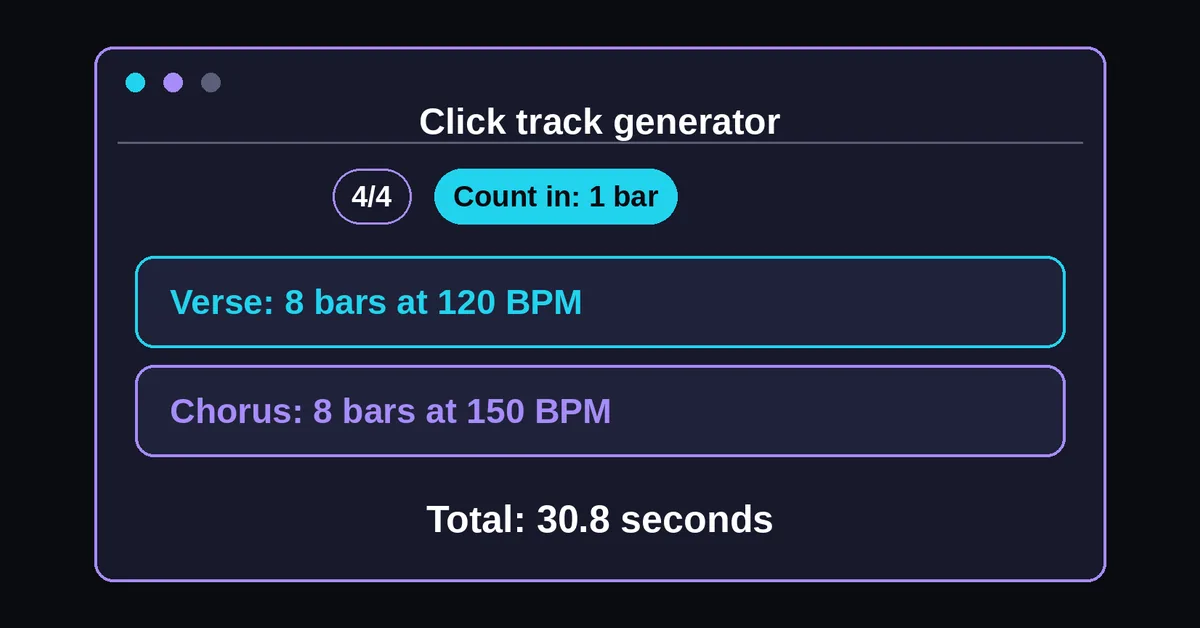
Build this short arrangement, with BPM counting quarter notes:
| Section | Music bars | Tempo and meter | Duration | File start time |
|---|---|---|---|---|
| Verse | 1 to 8 | 120 BPM, 4/4 | 16 seconds | 2 seconds |
| Chorus | 9 to 16 | 150 BPM, 4/4 | 12.8 seconds | 18 seconds |
One count in bar at 120 BPM occupies 0 to 2 seconds. The verse runs from 2 to 18 seconds and the chorus from 18 to 30.8 seconds. Total length is 30.8 seconds, covering 16 music bars plus the count in.
Practice the final verse bar into the chorus before playing the whole file. If you want a calculated relationship such as 120 to 80 BPM, use the metric modulation calculator before entering the next section. Tempo changes happen at section boundaries; this version has no continuous tempo ramps or spoken cues.

Which click grid and accents should you choose?
Choose a grid that makes the intended rhythm explicit. In meters with a quarter note denominator, the choices add quarter, eighth, triplet eighth or sixteenth positions. In meters with an eighth note denominator, the generator keeps an eighth base and labels the resulting pattern on the controls.
| Grid choice in x/4 | Label and audible pattern in x/8 |
|---|---|
| Quarter | Eighth base: one click at each eighth position |
| Eighth | Eighth base (same grid): identical to the first choice |
| Triplet eighth | Eighth base + eighth note triplets: a mixed, uneven grid |
| Sixteenth | Sixteenth grid: two clicks per eighth position |
Do not choose the mixed triplet option simply because the song is in 6/8. At 120 quarter note BPM, it combines straight eighth positions with eighth note triplets, merging coincident attacks. The result is 12 attacks per 6/8 bar, rather than nine evenly spaced triplet attacks. Puget Sound's tuplet reference explains the underlying note values.
For that 6/8 example, attack times in milliseconds from bar start are 0, 166.67, 250, 333.33, 500, 666.67, 750, 833.33, 1,000, 1,166.67, 1,250 and 1,333.33; the next bar begins at 1,500. These display values are rounded; calculation uses exact rhythmic positions. The same mixed choice produces 14 attacks in 7/8, truncating the last triplet group and restarting the layer each bar. Inspect every attack in the preview before export.
Accents affect base positions only, with the first accented by default. Try positions 1 and 4 on a 6/8 eighth base to mark its two groups. For one possible 2+2+3 grouping in 7/8, accent positions 1, 3 and 5. Match your score's grouping. Use the note duration calculator for other note length conversions.
How do you use the WAV in a DAW?
Import the WAV onto its own audio track, preserve its timing and recreate the exported section map in your digital audio workstation. Allow for the count in when placing the first music downbeat. Check both the opening and each tempo change against the DAW grid before recording a take.
For the verse and chorus example, placing the file at DAW bar 1 puts the music entrance at DAW bar 2. The chorus starts at DAW bar 10, at 18 seconds, where the project tempo should change to 150 BPM. This assumes the DAW includes the count in as a full 4/4 bar at 120 BPM.
Check the relevant import behavior:
- Ableton Live: turn Warp off to play the file at its original timing, as described in Ableton's manual.
- Logic Pro: review Smart Tempo and Flex & Follow, including automatic alignment or trimming of imported regions.
- FL Studio: check time stretching and sample tempo interpretation if the clip changes length or speed.
A plain WAV does not automatically create this section tempo map. Listen across the chorus entrance to verify the later change.
For live playback, route the click to a separate headphone output in your DAW or mixer if your setup supports it. Test the headphone feed and audience output separately before rehearsal. Stereo export duplicates the click on both channels; it does not place a backing track on the other channel.
Which WAV settings and file size should you choose?
Choose mono unless your playback setup specifically needs stereo, then select 44.1 or 48 kHz for a 16 bit PCM WAV. Stereo duplicates the same click and doubles its audio payload. The size estimate includes header bytes, so use the displayed total when checking space for a rehearsal file.
At 44.1 kHz, one minute of mono audio contains 44,100 × 2 × 60 = 5,292,000 payload bytes, about 5.29 MB. Stereo contains 10,584,000 payload bytes. At 48 kHz, mono contains 5,760,000 bytes per minute. Add the WAV header to each payload. This arithmetic follows Microsoft's PCM format definitions.
A single section filename identifies tempo, meter and music bar count, such as click-track-120bpm-4-4-30bars.wav. Multiple sections use their count, such as click-track-2sections.wav. Keep the printed map for count in and section details.
Use Print map for the chart and Copy arrangement link to preserve the editable section settings. Share both when bandmates need editable settings and finished audio. Rendering and WAV encoding run locally in the browser; no recording upload is needed.
Can the click follow an existing song automatically?
No. This click track maker renders the tempos and sections you enter; it does not listen to a recording, detect a beat grid or follow changing performance timing. Recreate known changes as fixed sections, then compare the exported downbeats with the song in your DAW before using it for playback.
Check the beginning, a middle passage and the ending. If the click is displaced by the same amount throughout, inspect its start position and count in. If the separation grows, revisit tempo or import stretching. A performance with continuously changing timing may need a detailed DAW tempo map rather than this section based arrangement.