

How Do You Use the BPM Finder?
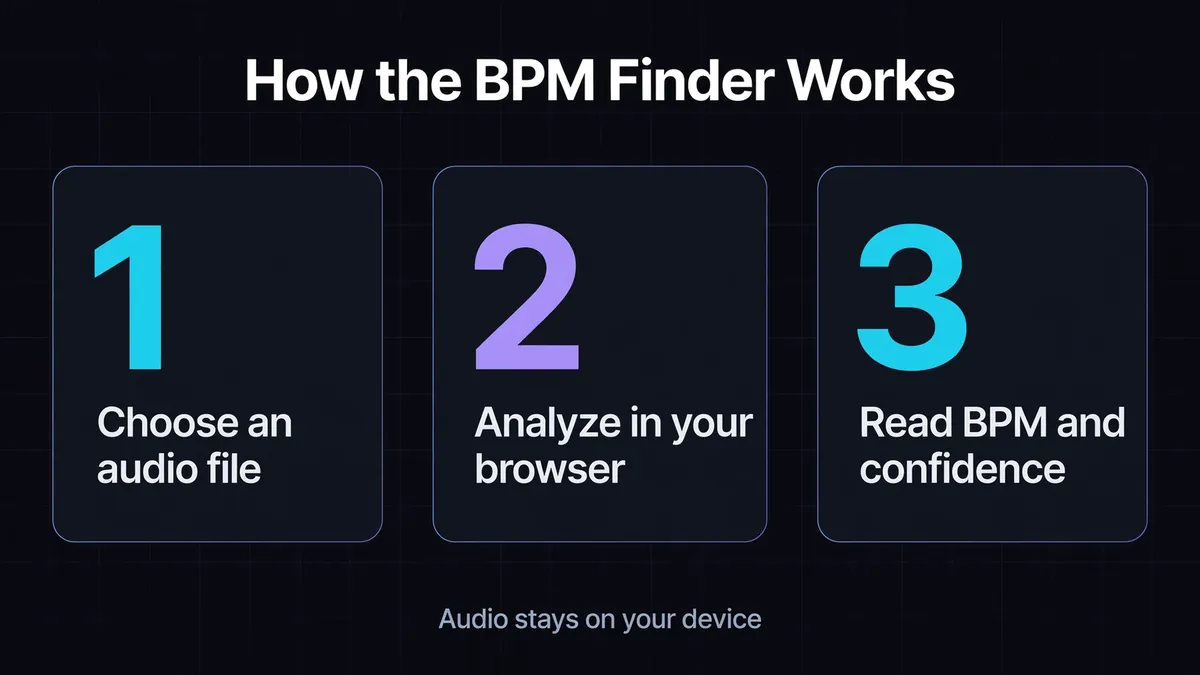
A BPM finder estimates a song's tempo in beats per minute from an audio file. Choose a recording to see its BPM, confidence, duration and waveform. This free song tempo finder analyzes audio locally in your browser, so your file stays on your device. Check the estimate against the music before using it.
- Drag an audio file onto the file box, or click the box to choose it.
- Wait for your browser to decode and analyze the recording. Processing time depends on the file and device.
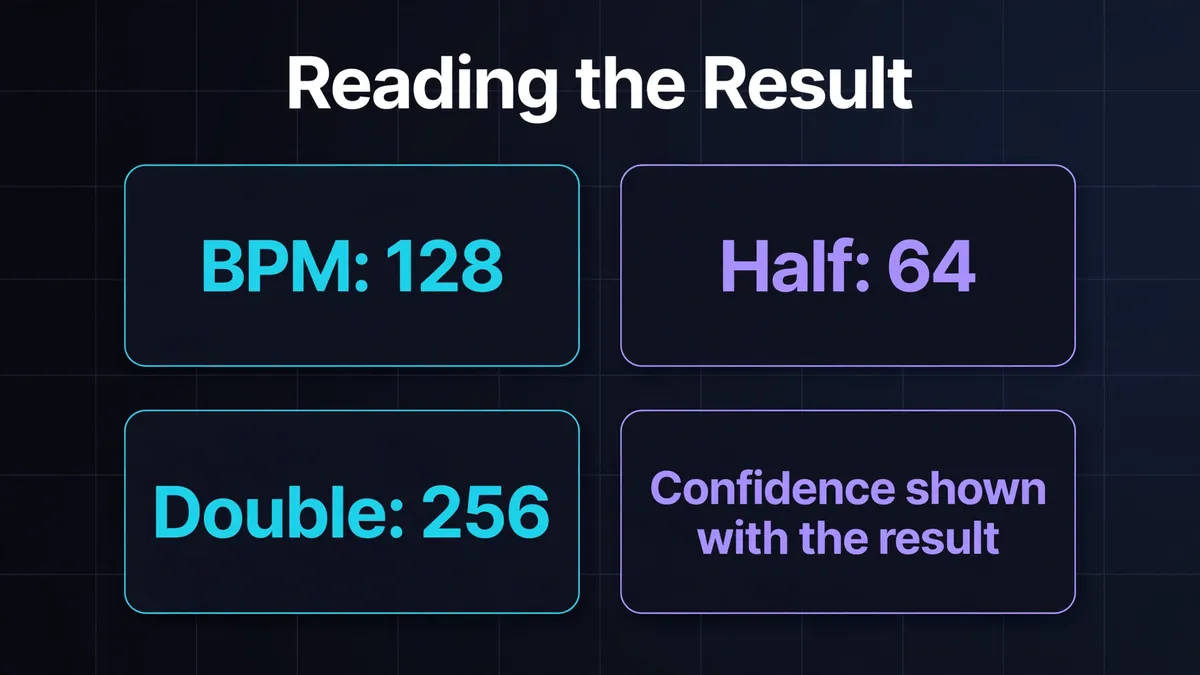
- Read the estimated BPM, then compare the Half-Time, Dominant and Double-Time options with the pulse you hear.
- Choose New File to analyze another recording.
The multiplier controls change the displayed interpretation and beat duration. They do not change the audio's playback speed. Listen to the recording in your audio player while checking the result.
Analyze the version you will actually use. A live performance, remix or playback speed change can differ from another release with the same title. A database listing is a reference to compare, not a measurement of your file.
How Does the BPM Finder Detect Tempo?
The BPM detector searches for repeating patterns in sound attacks, called onsets. Drum hits and the beginnings of notes can reveal a pulse within a full mix. It compares the timing of those changes to estimate a dominant repetition rate, rather than looking up the song's title in a database.
Your browser decodes and downsamples the recording, then builds an energy envelope from 50 ms windows. The detector keeps increases in that envelope as onset flux and uses autocorrelation to find repeating intervals. Its search range is 50 to 210 BPM. That range does not establish the song's musical tempo.
For a timing example, attacks repeating every 0.5 seconds suggest 60 ÷ 0.5 = 120 repetitions per minute. Whether those attacks represent beats or subdivisions still needs checking. Ableton's beat and tempo lesson distinguishes the underlying pulse from the drum pattern played around it.
Tempo estimation also differs from locating each beat. The waveform is an overview of the audio, not an editable beat grid or tempo map.
Which Audio Files Can You Analyze?
The finder accepts MP3, WAV, FLAC, OGG, M4A and AAC files when your browser can decode them. Use an MP3 for a song or a WAV for a loop; the extension alone does not guarantee compatibility. File decoding happens before tempo detection, so a decode failure is not a BPM result.
MDN's audio codec guide explains why support varies across browsers. If a file fails, confirm that it plays elsewhere, then try exporting a fresh MP3 or PCM WAV in an audio editor. Renaming an extension does not convert the audio.
There is no site imposed file size limit, but device memory still limits processing. Decoded audio occupies memory, as MDN's AudioBuffer documentation explains. A small compressed file is not necessarily a small processing job.
For a long recording, export a shorter passage in another app and select that new file. Keep several complete musical phrases. The finder does not provide an excerpt editor. Export a valid audio file, since browser decoding requires complete file data, rather than an arbitrary fragment of its bytes.
What Does the Confidence Score Mean?
The confidence percentage describes how strongly the chosen repeating interval stands out against other tested intervals. It helps you decide when to check more carefully, but it is not a measured probability that the BPM is correct. A strong repeated subdivision can receive high confidence while suggesting the wrong counting level.
For example, a hypothetical 95% reading at 140 BPM does not establish a 95% chance that 140 is the intended beat. Listen at 70 as well. The useful question is whether the chosen pulse fits the music through a phrase, not whether the confidence number looks reassuring.
Silence has no musical pulse. If an empty or nearly silent recording produces a number, disregard it. Likewise, repeated speech syllables do not by themselves establish a song tempo. Confidence cannot replace audible rhythmic evidence.
Why Might the Result Be Half or Double the Beat?
A recording can contain several related pulse rates at once. The detector may favor notes between the beats or a slower repeating accent. Compare the reported tempo with half and double its value, keeping the audio unchanged. Listen through complete phrases instead of deciding from one kick or snare hit.
Suppose the finder reports 140 BPM. These are alternative ways to test the same recording:
| Interpretation | Calculation | Pulse spacing |
|---|---|---|
| Half | 140 ÷ 2 = 70 BPM | About 857.14 ms |
| Reported | 140 BPM | About 428.57 ms |
| Double | 140 × 2 = 280 BPM | About 214.29 ms |
Pulse spacing equals 60,000 ÷ BPM. These rows compare counting rates, without assigning a note value. The 280 BPM comparison is calculated from the result; it is outside the detector's search range.
Both 70 and 140 can line up regularly. Choose the counting level that fits your score or project. Research on tempo ambiguity documents these related interpretations. Our half time versus double time guide explains the musical distinction.
How Accurate Is a BPM Finder?
Treat the detected BPM as an estimate and test it against a steady passage. Set the online metronome to that tempo, align a click with a beat and listen for progressive separation. A fixed offset may mean you started late; an increasing offset suggests a tempo mismatch or a changing performance.
Here is a worked check. At exactly 120 BPM, 60 beat intervals take 60 × 60 ÷ 120 = 30 seconds. At 121 BPM, those intervals take about 29.752 seconds. A 121 BPM click therefore reaches the comparison point about 0.248 seconds early, despite starting together.
That growing gap differs from a click that remains a little late throughout. Restart alignment before changing the tempo. Then compare a later steady passage to see whether the same setting holds.
Kick or snare alignment alone does not establish the beat: drum hits can fall between beats or leave beats silent. Do not force every visible waveform peak onto a click. More decimal places would not prove that the detector chose the intended pulse. See why BPM detectors disagree when two estimates need closer comparison.
Which Part of a Song Should You Analyze?
Choose a passage with an audible, sustained pulse when checking a whole song's result. A free intro, sparse breakdown or tempo change may need separate analysis. Export those sections elsewhere if necessary. The finder reports one estimate for the selected file, so it cannot describe every local change in a performance.
Imagine preparing a rehearsal track with a loose piano intro followed by a steady band entrance. Analyze the full file first, then check the band section. If the estimate does not hold, export that section and analyze it separately. Use its verified tempo for rehearsing that passage; do not force the intro to match.
A live chorus may also accelerate. If a click matches its beginning but falls behind later, compare shorter sections before assuming the detection failed. Rubato and deliberate tempo changes can make one BPM inadequate. Ableton's warping manual describes working with variable tempo when a recording needs to follow a project grid.
What Should You Do With the Result?
Use a checked estimate as a starting tempo in your digital audio workstation (DAW), a DJ beatmatching reference or a practice setting. Confirm alignment over the passage you need. Matching BPM gives you a timing reference, but you still need to place the recording's first beat and check its bar boundaries.
Suppose you are importing a loop known to contain four complete bars of 4/4, with no pickup or trailing silence. Assuming BPM counts quarter notes, that is 4 × 4 = 16 beats. If the loop lasts 7.5 seconds, its tempo is 16 × 60 ÷ 7.5 = 128 BPM. Check that result with the BPM calculator.
At 128 BPM, a quarter note lasts 60,000 ÷ 128 = 468.75 ms. Convert BPM to milliseconds for note durations or use the delay calculator for effect timing. These conversions assume quarter note BPM. Sheet music marked by the dotted quarter converts at 1.5 times its number.
Changing a DAW's tempo alone does not necessarily align imported audio. In Ableton Live, for example, an unwarped clip retains its original tempo, as the official Warp documentation explains. Check the clip settings before judging whether your detected tempo is wrong.
What If You Can Hear the Song but Have No File?
Use tap tempo when the song is playing from a streaming service, speaker or instrument and you have no audio file to analyze. This finder cannot process pasted YouTube or Spotify links. The tapping tool measures your taps, so it does not need access to the recording or microphone.
Tap the steady pulse with the spacebar, a letter or a number key for 8 to 12 taps. It averages the most recent 8 gaps with outliers set aside. A 2.5 second pause starts a fresh reading; Esc resets it. Compare another passage before using that estimate.