
How do you change a song's BPM?
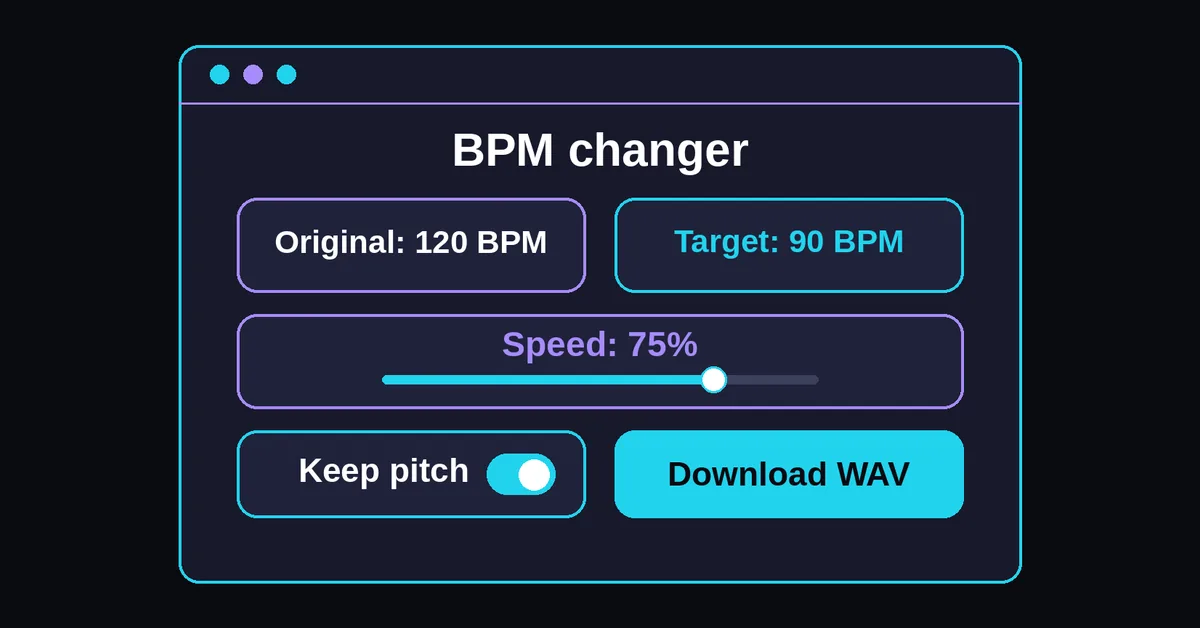
Select a file, enter its original tempo and choose a target BPM. The tool calculates the playback ratio and resulting duration. Keep pitch is selected initially. Check the original BPM before rendering, because a wrong starting value produces the wrong target even when the rate calculation itself is correct.
- Choose one local file up to 25 MB and 5 minutes long.
- Enter Original BPM and Target BPM, or adjust Speed percent.
- Choose Keep pitch or Tape speed, then select Render preview.
- Switch between Original and Processed playback. Check vocal tone and drum attacks before selecting Download WAV.
Speed percent describes the percentage of original speed. At 75 percent, the recording runs 25 percent slower. You can slow down music online by percentage, but a displayed target BPM still depends on your original entry.

How do you choose the correct original BPM?
Use the same counted beat for the original and target values, and verify the source before rendering. The BPM finder measures tempo separately; this audio tempo changer requires manual entry. When two readings differ by half or double, listen to the pulse you intend to preserve before choosing one.
Suppose a recording counts at 120 beats per minute, but you enter 60 as Original BPM and 90 as Target BPM. The ratio becomes 1.5, so the actual 120 BPM pulse speeds up to 180 BPM. Entering 120 and 90 instead gives the intended slowdown.
For manual confirmation, follow how to find BPM. Check a steady passage rather than a free opening. If you also need a key estimate, use the separate key and BPM finder.
Keep the beat unit consistent across meters. A dotted quarter pulse of 60 in 6/8 equals 90 quarter notes per minute. See time signatures and BPM for more on beat units.
What happens to speed and duration?
The speed ratio is target BPM divided by original BPM. Divide the original duration by that ratio to find the new duration. Slowing a recording increases its length; speeding it up shortens it. These calculations assume one constant rate across the whole file, without cutting or adding sections.
Both columns of this table count quarter notes.
| Original BPM | Target BPM | Speed | Change | Result for a 180 second file |
|---|---|---|---|---|
| 120 | 90 | 75% | 25% slower | 240 seconds |
| 120 | 150 | 125% | 25% faster | 144 seconds |
| 128 | 140 | 109.375% | 9.375% faster | About 164.57 seconds |
A 25 percent slowdown makes the file one third longer, because duration uses the inverse ratio. Use the tempo calculator for arithmetic without processing audio. Renaming an unchanged pulse as half time or double time changes the counting, not the recording's duration.
Can you change tempo without changing pitch?
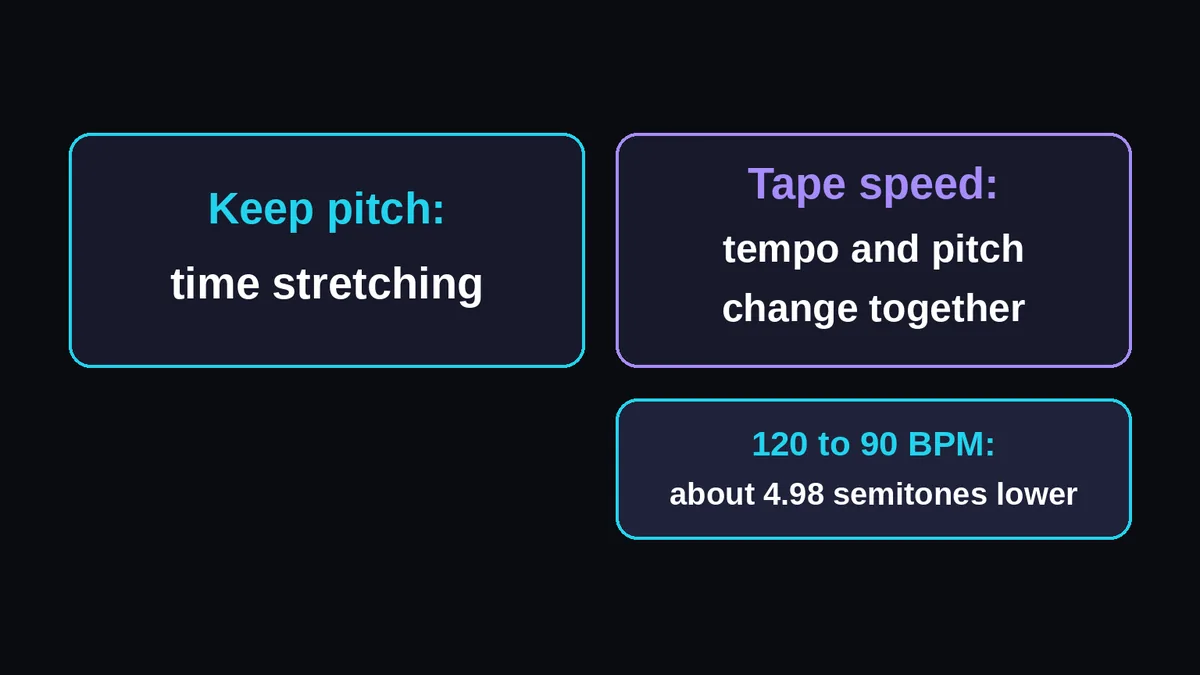
Yes. Keep pitch uses time stretching to alter duration while aiming to retain the original pitches. Tape speed changes duration and pitch together, like playing a recording faster or slower. Neither option promises unchanged sound: compare vocal texture, sustained tones and the attack of drum hits before saving.
SoundTouch's technical documentation distinguishes tempo changes with retained pitch from playback rate changes that affect both. Choose according to your task:
| Task | Mode | Check |
|---|---|---|
| Learn notes against the recording | Keep pitch | Your instrument still agrees with the pitches |
| Match a vocal to a new project tempo | Keep pitch | Sustained vowels remain usable |
| Create a slower, lower recording | Tape speed | The pitch change suits the arrangement |
This logarithmic pitch formula gives about 4.98 semitones lower for 120 to 90 BPM. Calling that an exact five semitone transposition would be incorrect. Check the Camelot wheel for key relationships when preparing a mix; a fractional semitone change may also affect tuning.
What should you listen for in the preview?
Compare the same musical event in Original and Processed playback, rather than judging only whether the new version feels slower. Listen for softened drum attacks (transients), altered vocal texture and changes in sustained notes. Pitch preservation describes the pitch goal, while the preview lets you judge whether the processed sound serves your task.
Ableton Live's warp documentation explains why different musical material calls for different processing approaches. Use these listening checks:
- Drums: seek to an isolated snare or kick and compare the beginning of the hit.
- Vocals: compare a held vowel and the consonant leading into it.
- Guitar or piano: check a chord's initial attack and its decay.
- Full mix: inspect a dense chorus as well as a sparse verse.
If the result is unsuitable, try a target closer to the original and render again. No universal percentage boundary defines acceptable artifacts. Switching playback follows the same musical position, so displayed seconds can differ. Adjust volume for comfortable listening; the comparison is not automatically loudness matched.
How can you practice or match a sample to a project?
For transcription, slow a passage with Keep pitch so you can compare the recording with your instrument. For production, use the sample's source tempo and your project's target tempo, then inspect the downloaded file against the grid. Tempo entry alone does not establish where the first downbeat belongs.
Try this guitar practice sequence with a 120 BPM recording:
- Render at 90 BPM with Keep pitch and seek to the difficult phrase.
- Play along until you can identify the notes and their placement.
- Return to the original file and render a 105 BPM version, then compare your playing at 120 BPM.
Those exercise settings correspond to 75, 87.5 and 100 percent speed. Practice separately with the online metronome.
To fit a steady 128 BPM sample into a 140 BPM project, use 109.375 percent speed. Import the WAV, align its downbeat, and check a later phrase boundary. Avoid applying another automatic stretch unintentionally after import. In Ableton Live, inspect the clip's Warp settings before judging its new length.
What can you preview and download?
Render preview processes the full selected file, then lets you switch between Original and Processed playback. Download WAV saves the checked result as a 16 bit PCM WAV at 44.1 kHz, retaining one or two source channels. MP3 input works when your browser decodes it; output remains WAV.
The result shows the rate ratio, percentage, source and result durations, pitch mode, sample rate and output bytes. Preview and export use the same final audio buffer. Use Play/Pause, seek and volume to inspect a passage.
Changing settings marks the preview as out of date and disables download until you render again. Make each attempt from the original source. WAV output cannot recover details previously lost through compressed encoding.
For timing in sample counts, use BPM to samples with your session sample rate.
Why might a file be rejected or a render fail?
A file must meet the size, duration and channel limits, and the requested tempo must satisfy both BPM and speed limits. Unsupported codecs and insufficient working memory can also prevent processing. A small compressed input does not necessarily mean a small render, because processing needs decoded audio in memory.
| Check | Allowed value |
|---|---|
| Source file | Up to 25,000,000 bytes and 300 seconds |
| Channels | One or two |
| Original and target BPM | Each 20 to 400 BPM |
| Speed | 50 to 200 percent, or 0.5× to 2× |
| Processed duration | Up to 600 seconds |
For example, 120 to 300 BPM fits the BPM fields but needs 250 percent speed, so it is rejected. A 5 minute source at 50 percent becomes 10 minutes long and needs more memory for its result.
The Web Audio API stores an AudioBuffer as 32 bit floating point PCM. If a phone cannot complete rendering, prepare a shorter excerpt in an editor and select that file. Cancel render abandons processing; browser decoding may take longer to stop.
Will the download overwrite your original file?
No. Download WAV creates a new processed file, leaving the selected source unchanged. Audio processing stays on your device, without sending the recording to a server. Keep the original for other tempo or pitch choices. Download each practice tempo separately so you can keep multiple versions.
A constant ratio also retains relative timing variation. A live performance that rushes or relaxes will still do so after processing. For individual beat corrections, use a DAW tempo map or warp editing, as described in Ableton's timing guide. Clear file removes the current selection and result from the tool.
For comparisons across several practice files, put the source BPM, target BPM and pitch mode in each saved filename. A name such as rehearsal_120_to_90_keep_pitch.wav distinguishes the slower practice version from the untouched recording, even when your music player does not display a tempo tag.